The short answerMost late score alerts come from the phone, not the app: Android battery saving can hold notifications back while the screen is off. Setting the app’s battery use to Unrestricted, and keeping its notification channels switched on, removes most of the delay. What remains is the sports data feed itself, which updates about once a minute.
A goal goes in, and your phone tells you two minutes later, or when you next pick it up. It is the most common complaint about any score app, and it is usually blamed on the app. Sometimes that is fair. More often the delay comes from somewhere else along the way, and one step of it is under your control.
The four steps between a goal and your notification
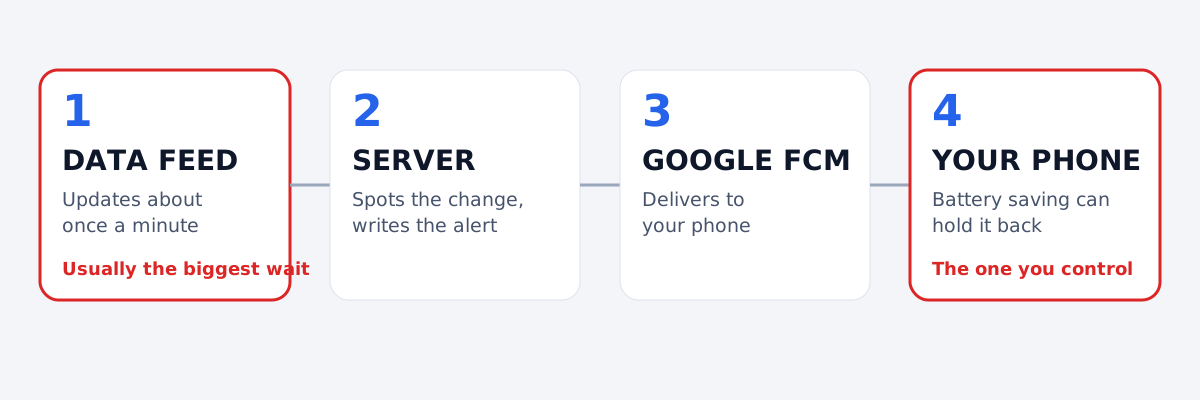
- The data feed. Score apps get results from sports data providers, and most feeds refresh roughly once a minute. Nothing downstream can be faster than the feed.
- The app's server. The server compares the latest data with what it saw before, notices the goal and writes the alert. How often it checks matters: an app that checks once a minute adds up to a minute more.
- Google's delivery service. On Android, notifications from apps travel through Firebase Cloud Messaging. For time-sensitive alerts sent at high priority this step normally takes seconds.
- Your phone. Android saves battery by holding back background work while the screen is off. Depending on the phone and its settings, that can delay a notification by minutes.
Fix the part on your phone
These settings apply to any score app. The menu names below are from recent versions of Android; phone makers sometimes word them differently.
1. Let the app run unrestricted
Go to Settings › Apps › [the app] › Battery and choose Unrestricted. This is the change that helps most, because it stops Android from delaying the app's notifications to save power.
2. Take it off any sleeping-apps list
Samsung phones have their own battery lists in Settings › Battery › Background usage limits. If the app appears under Sleeping apps or Deep sleeping apps, remove it. Other manufacturers have similar lists, usually under battery or app launch settings.
3. Keep the notification channels on
Android lets apps split their notifications into channels, and each can be switched off separately. In Settings › Apps › [the app] › Notifications, make sure the channels you want are on. BuffScore uses one channel for match alerts such as kick-off and full time, and a quieter one for live score updates.
4. Check Do Not Disturb
If Do Not Disturb or a bedtime mode is on, notifications can arrive silently or wait in the shade. You can allow specific apps through in the Do Not Disturb settings.
What a well-built app does on its side
Some of the delay is the app's responsibility, and there are a few things worth expecting from it:
- Check often while a match is on. BuffScore checks for changes twice a minute while a team you follow is playing, so an alert goes out as soon as the feed moves, rather than waiting up to a minute more.
- Send match alerts at high priority, so Google delivers them straight away.
- Expire stale alerts. A score that arrives an hour late is noise. BuffScore's live score updates expire after 15 minutes, so a phone that was switched off does not light up with old goals.
- Update one notification per match instead of stacking a new one for every goal, so the latest score is the one you see.
Still late after all of that?
If alerts are consistently several minutes behind with battery saving turned off, the delay is almost always in the data feed, which no app can make faster than it is. That is also why no honest score app should promise alerts in real time: the feed decides, and the rest is about not adding to it.
Scores, tables and alerts in one app
BuffScore is free on Android. No odds, no betting.